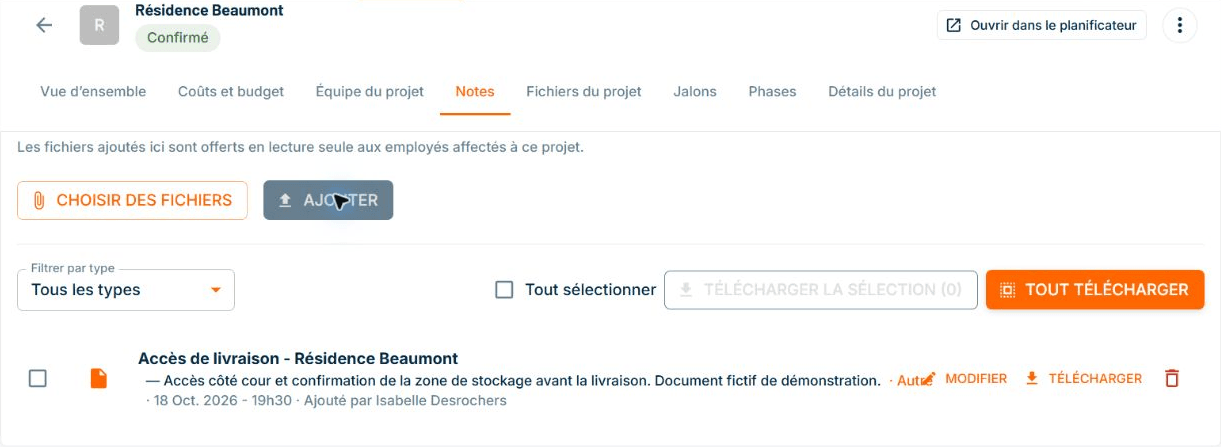
Site documents: access on your cellphone
ConstruMD
Nov 5, 2026
All Posts
SHARE THIS POST
Published : November 5, 2026
A team may be available on the right dates but cost more than you had planned for the site. If you discover this after preparing the schedule, you need to redo your calculations and possibly change an already announced organization.
Before confirming the team, check each person's hourly cost and the hours you plan to reserve for them. The cost of these hours can then be compared to the amount budgeted for labour in your site estimate.
The discrepancy often comes from how the budget and schedule are prepared. The estimate is based on an average cost per trade. The schedule, however, is based on specific employees, chosen according to their skills, availability, and the needs of the site.
Two employees in the same trade can have different hourly costs for the company. If you apply the same amount to all their hours, your estimate may not accurately reflect the cost of the team you just planned.
The number of hours may be correct, as well as the dates, without the budgeted amount for labour matching the people who will do the work.
To find the team's cost, you need to review the employees assigned to the site, check each person's hours, and redo the calculations with their respective costs. If this information is kept separately, each team change requires a new verification.
If the amount exceeds what you had planned, you must decide how to organize the work before confirming the next expenses. A different team may require reviewing availability on other projects. When the schedule has already been sent, you also need to inform the concerned individuals and correct the instructions.
Cost verification is therefore useful during team preparation, when you can still choose the employees and periods that suit the site.
The ConstruMD resource planner uses the recorded costs for your employees and their scheduled hours to calculate the project's labour cost. You prepare these costs before creating assignments, then view the obtained amount in the site record.
This method allows you to verify the team's cost while preparing its schedule. Here's how to set up the information.
In Manage → Roles, each role includes an "Employee Paid Rate" and a "Real Cost for the Company". To prepare your estimate, check the second field: it serves as a reference when no individual cost is entered in the worker's record.
You enter the amount corresponding to your company's costs. Employees associated with the role use this base, except for those for whom you have recorded an individual cost.
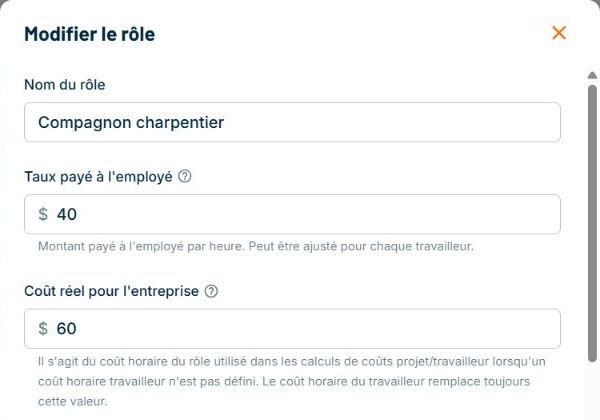
Demonstration data. The "Companion Carpenter" role distinguishes the employee paid rate, at $40, from the real cost for the company, at $60. Observe the "Real Cost for the Company" field for the cost used as a reference.
Open Manage → Workers, then the employee's record. In Edit Details, the "Hourly Cost" field allows you to record their individual amount. Also, ensure that the "Include in Cost Calculations" option is enabled to integrate it into your estimate.
For new assignments of this employee, the ConstruMD planner uses their individual cost instead of the role cost. If the field is empty, the role cost serves as a reference.
You can thus keep the same role for two people in the same trade while accounting for their cost difference in planning.
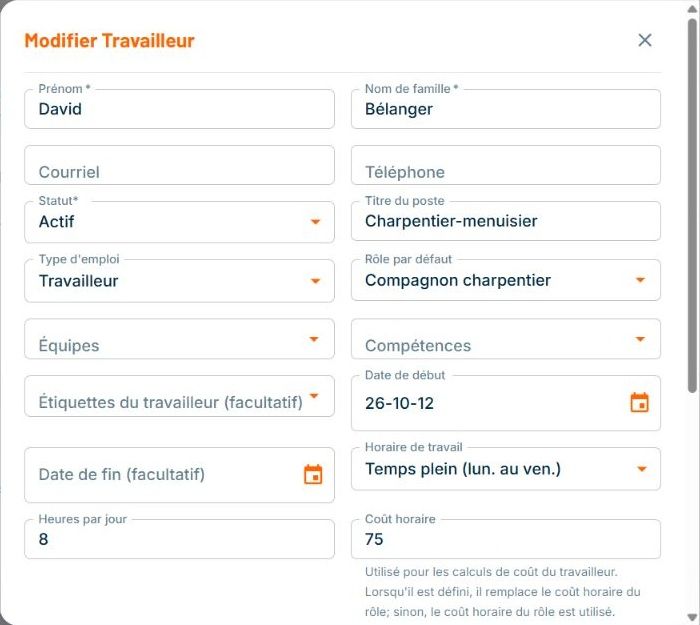
Demonstration data. David Bélanger retains the "Companion Carpenter" role, but his individual hourly cost is set at $75. The text under the field specifies that this amount replaces the role cost in calculations.
Once the costs are recorded, add the employees to the site in the Projects calendar, with the appropriate role. For each work period, indicate the start date, the number of workdays, and the planned hours per day. This way, you prepare the time reserved for each person.
Then open the site record in Manage → Projects, then Costs and Budget. The Labour section displays the included hours and the calculated amount based on the recorded costs.
In the demonstration verified at the Clinique des Tilleuls, Samuel Lavoie and David Bélanger each have eight hours planned. They have the same role, but David has an individual cost recorded before creating his assignment. The calculation therefore uses a different amount for each:
| Fictitious Employee | Planned Hours | Cost Used | Calculated Amount |
|---|---|---|---|
| Samuel Lavoie | 8 h | $60/h, role cost | $480 |
| David Bélanger | 8 h | $75/h, individual cost | $600 |
| Team | 16 h | $1,080 |
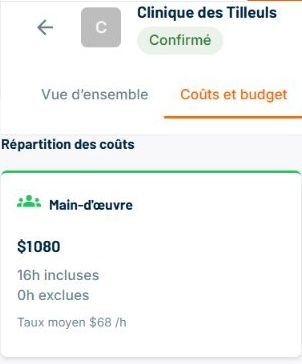
Demonstration data, verified after saving and reloading. The "Labour" section displays $1,080 for the 16 planned hours. The calculation considers the role cost for Samuel and the individual cost for David.
Compare this amount to what you have planned for labour in your site estimate. If the discrepancy is significant, first check the recorded costs and reserved hours. You can then review the work distribution or employee choice considering the site's needs.
This verification adds to that of skills and availability. To prepare a feasible schedule, you can also compare the workload of employees before assigning them the next tasks.
When confirming the team, you have thus verified its schedule and the cost of its planned hours. The amount no longer relies solely on an average per trade: it considers the people you plan to send.
Try the ConstruMD planner free for seven days, no credit card required. Record your employees' costs and prepare a next task to verify the labour amount before confirming the team.
You might like
ConstruMD
Nov 5, 2026
ConstruMD
Nov 5, 2026

ConstruMD
Nov 5, 2026