Site notes: keep changes in view
ConstruMD
Nov 5, 2026
All Posts
SHARE THIS POST
Published : November 5, 2026
An employee arrives at the site but is missing the document specifying which access to use. You had already sent it. However, you need to find it in your emails or messages and resend it while the employee waits.
In ConstruMD, files added to the project are accessible to the employees assigned to it. They can find the document from the site details on their cell phone. The file thus remains associated with the planned work, rather than the conversation in which it was sent.
The office may have all the necessary documents without the team knowing where to look for them. Access information arrives by email, an instruction is forwarded by text, and another file remains in the company's folder. For the employee, these sendings get mixed up with exchanges from other sites.
When the document becomes necessary, the search interrupts work. The employee calls; you look for the file; you verify that it indeed concerns the project, then you resend it. The same request may come up again when another person goes on-site.
The problem is particularly troublesome before a delivery or an intervention that depends on a specific instruction. The information must be obtained before choosing the access, dropping off materials, or preparing the work area.
The "Project Files" section of ConstruMD allows you to add a document to the site folder. You give it a title and a description indicating its purpose. The employee can then recognize the sought file without having to interpret an unclear attachment name.
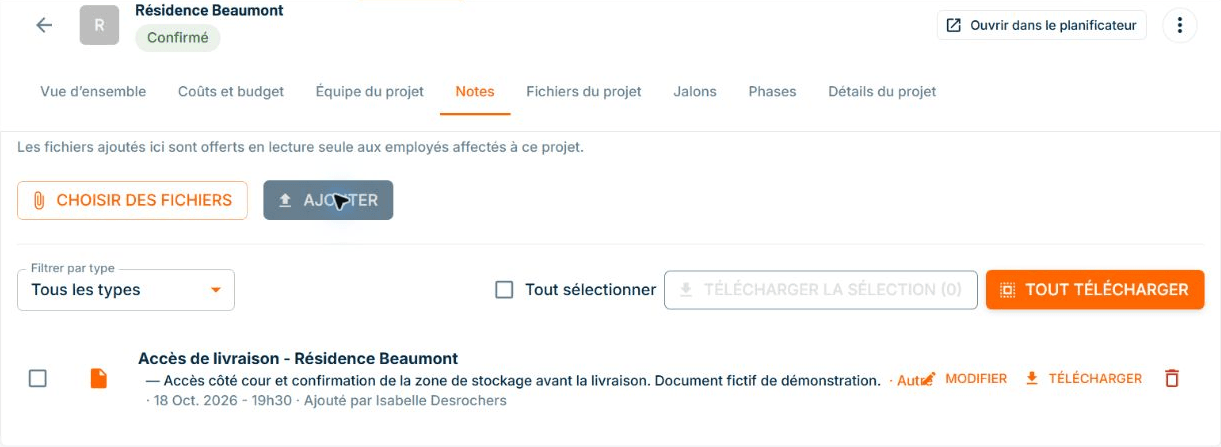
Fictitious demonstration data. The document is filed under Beaumont Residence. Its title and description indicate that it concerns delivery access.
In this demonstration, the document specifies the courtyard access, the passage to keep clear, and the confirmation needed for storage. These details remain in the project to which they apply. The list also displays the date and the person who added the file.
For the employee, the starting point is the site in the schedule. By opening its details, the employee accesses the "Files" section. There they find the title, description, and "Open" button for the document added by the office.
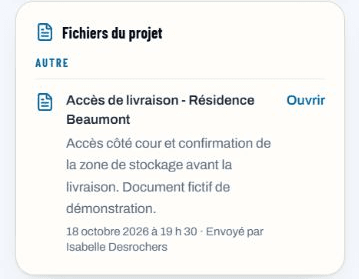
Fictitious demonstration data, mobile view. Marie Tremblay finds the document in the site of her schedule, with the description provided by the office.
If the document accompanies a specific work request, you can also attach it to that task. It then appears in its "Useful Files" on the cell phone. The employee thus finds the reference next to the instruction they must execute.
The office maintains a clear place to share the file, and the team knows where to return to find it. A call can then focus on a substantive question, like confirming the storage location, rather than starting with "Can you resend me the document?".
This link between the planned site and its information complements the ConstruMD resource planner. The employee finds their intervention, then the documents you have prepared for this project.
Try ConstruMD by adding a document that your team often requests to a site. You can verify its access from the cell phone of an employee assigned to the project.
You might like
ConstruMD
Nov 5, 2026

ConstruMD
Nov 5, 2026

ConstruMD
Nov 5, 2026