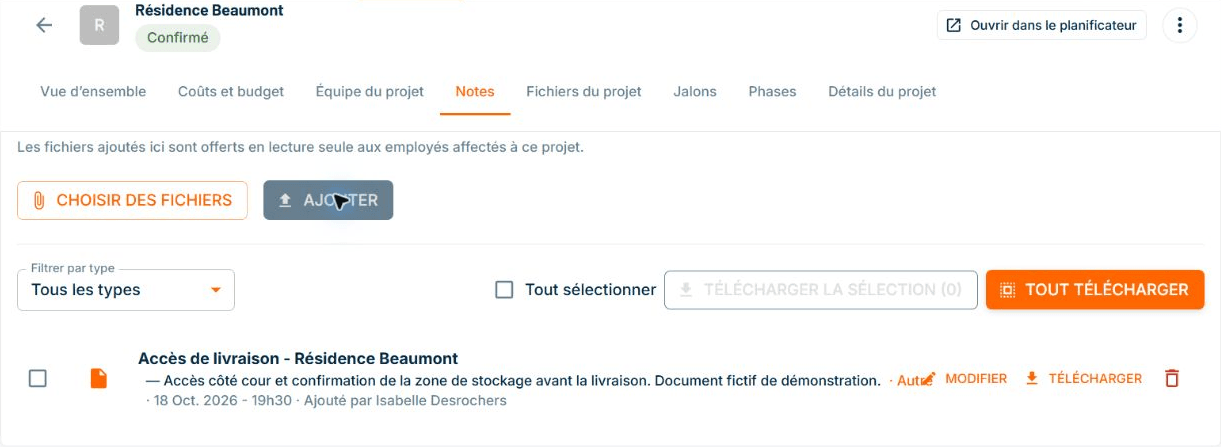
Site documents: access on your cellphone
ConstruMD
Nov 5, 2026
All Posts
SHARE THIS POST
Published : November 5, 2026
A construction site planner must quickly answer three questions: who is working where, what resources are already reserved, and what periods remain available. When this information is spread across multiple files, messages, or calendars, preparing for the following week requires too many checks.
The ConstruMD site planner brings together your projects, employees, and equipment in a common calendar. It helps build a realistic work schedule, check availabilities, and prepare upcoming contracts by considering what is already planned within the company.
A site occupies a team for several weeks. Another requires only a few interventions. Between the two, you need to integrate new work without losing track of existing commitments.
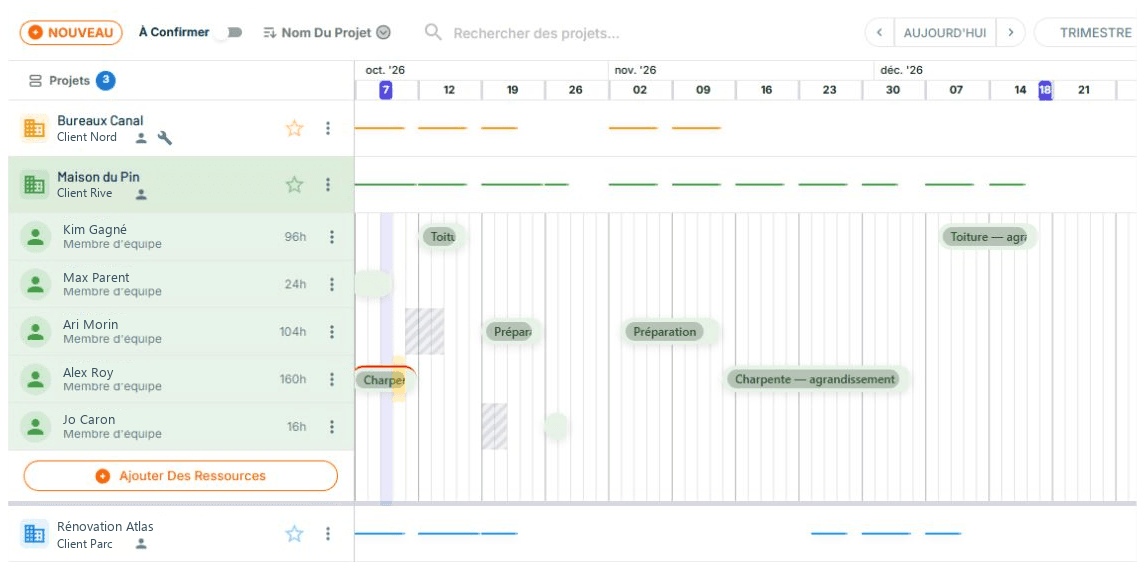
The calendar allows you to view assignments for multiple projects together. The colours associated with the sites make it easy to spot, and the different views allow you to switch from weekly organization to preparing for the coming months, up to the annual view.
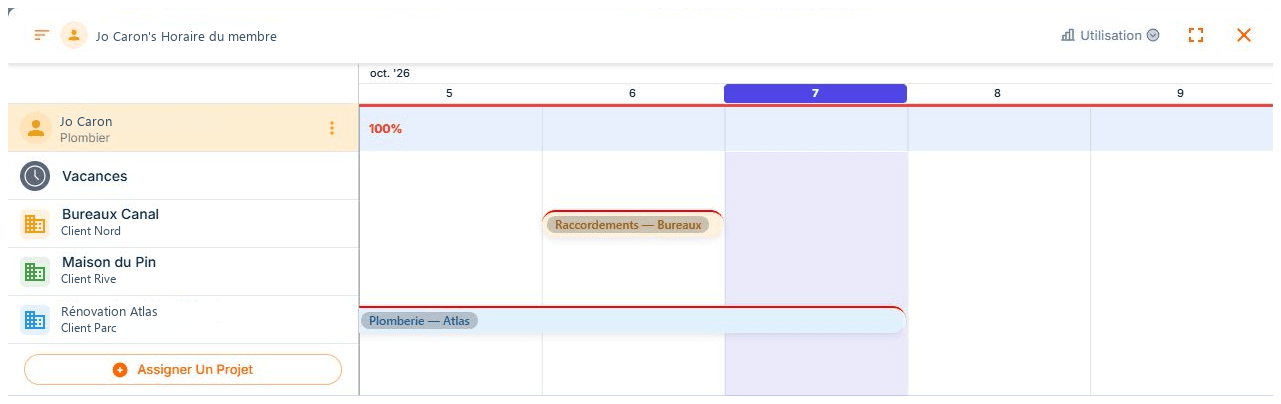
For an intervention that spans the weekend, you can indicate the workdays and check the end date. The form displays the corresponding period according to the employee's schedule. This way, you know which days to reserve before giving them a date on another site.
The Projects and Resources views present the same assignments by site or by employee. You can thus keep your site schedules up to date without separately correcting the site and employee tables.
You can more easily see busy periods and availabilities that could accommodate a new project.
For a site whose start is yet to be confirmed, you can prepare the periods in a To Confirm project. The filter allows you to examine available hours with or without these forecasts, to clarify commitments before setting a date.
A date entered in the calendar is not enough to start work. You also need the right people and necessary resources.
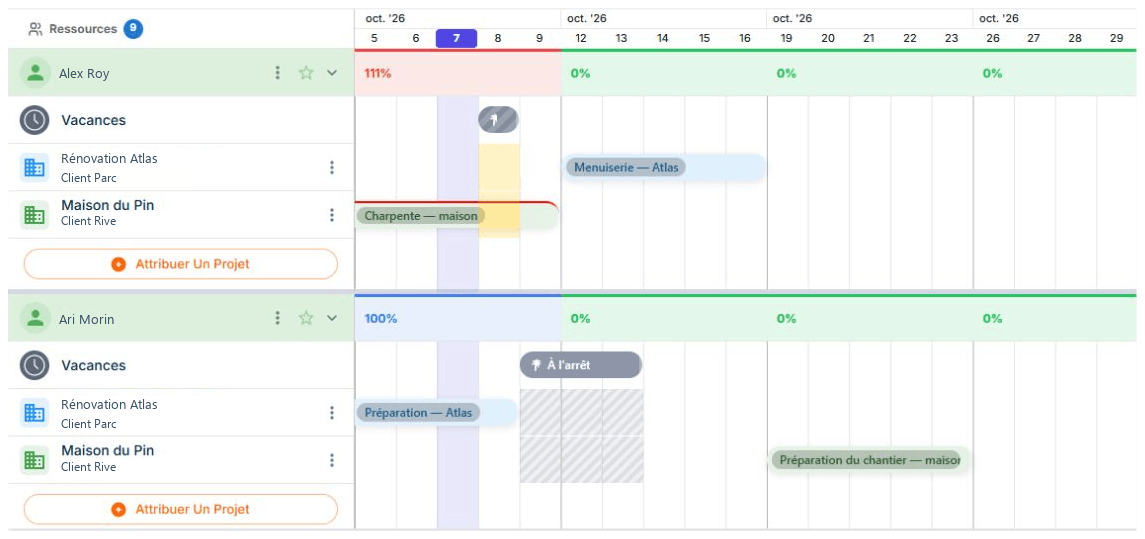
Our planner allows you to attach workers to your projects, prepare their assignments, and organize your employees into teams. Recorded absences remain visible, while planning conflicts help you spot overlapping commitments.
Interventions that follow one another can also fill a week beyond available hours. The Usage display compares scheduled hours to the employee's displayed capacity. It allows you to spot an overloaded week and choose another distribution before confirming the schedule.
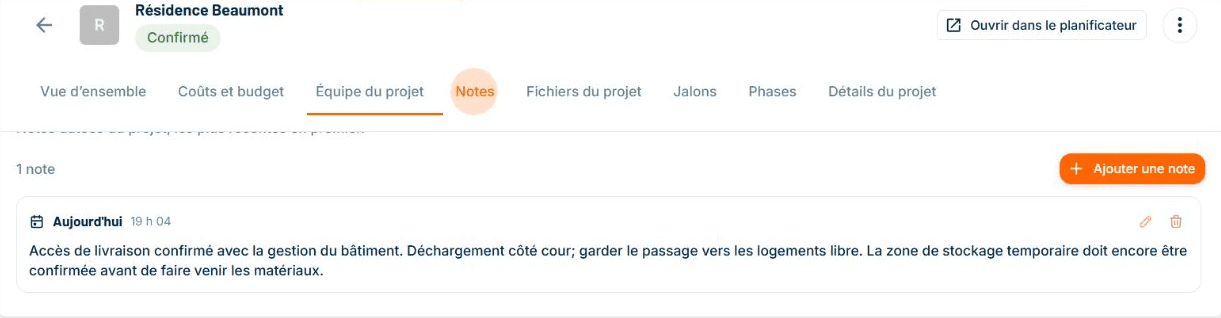
When a manager oversees multiple projects, you can also prepare their visits with those of the teams. Their interventions appear under the relevant sites; their note keeps track of points to address during the visit.
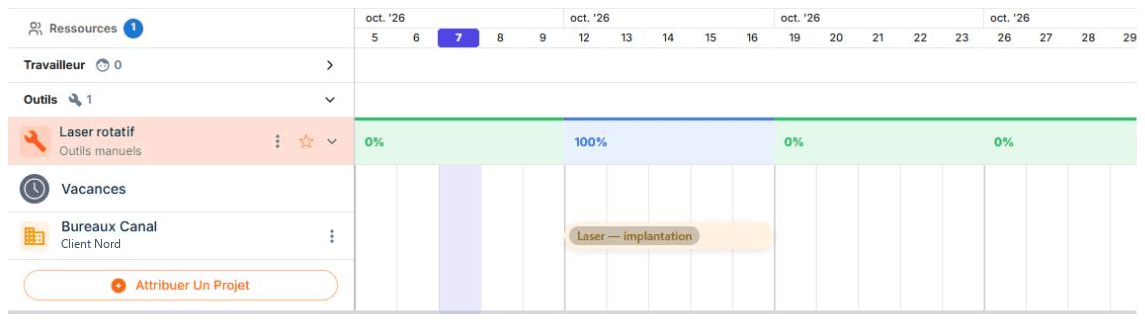
Shared tools can also be assigned to projects. This provides a reference for coordinating their use between sites.
Their scheduled periods also help prepare for equipment retrieval and transfer to the next site. Before the team's departure, you check the tools assigned to the project and agree on which ones need to return.
For machinery, you can schedule maintenance between two sites by entering the downtime period with the machine's assignments. This way, you account for the workshop visit before preparing its next use.
In construction, the schedule evolves. An intervention is extended, a delivery is postponed, or a client wishes to reschedule their work.
You can modify assignments while consulting other commitments of your resources. This helps you prepare a new distribution and assess the impact of a change on the projects involved.
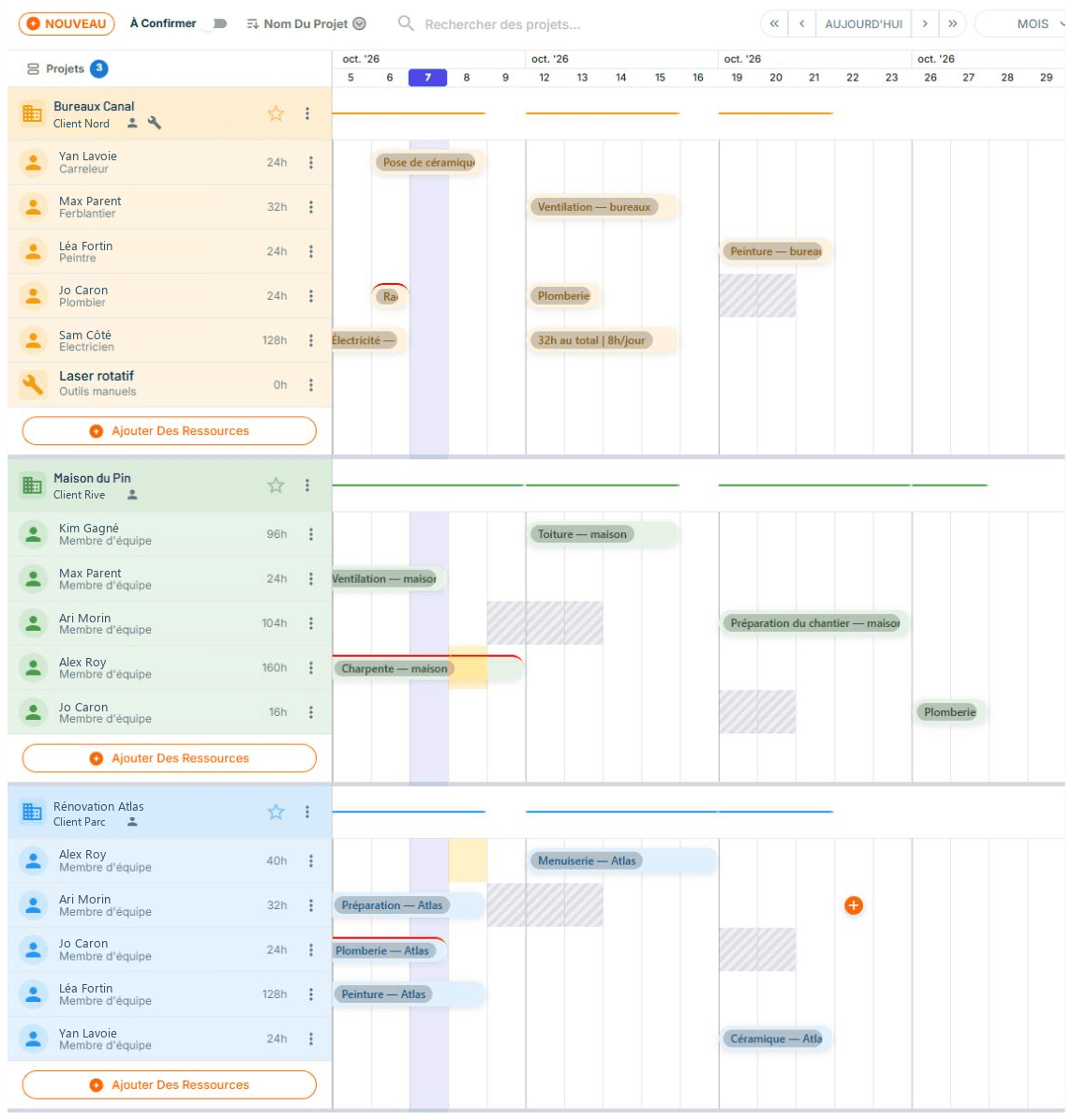
To discover this daily use, see how to distribute your employees across multiple sites.
This reading is also useful when work is not done in one go. You can reserve the team's return to the same site from the site's preparation and consult the planned commitments between the two visits. To schedule a small job, you rather look for a day that fits the existing schedule.
When a team must complete its preparation before the next one arrives, the periods displayed under the site allow you to prepare the sequence of interventions. You choose the next start by considering this preparation and the other commitments of the expected team.
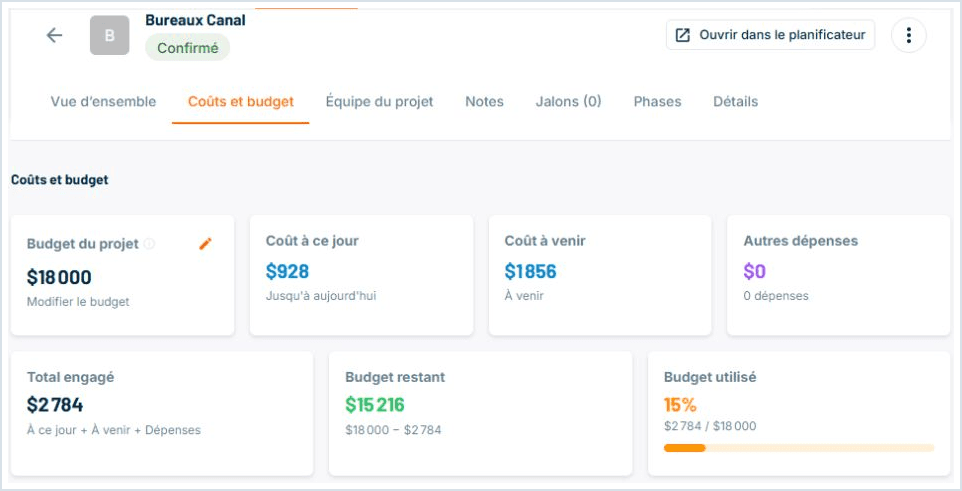
The hours entered in the calendar represent a financial commitment. When the hourly costs of roles are provided, the project dashboard allows you to view the planned hours and corresponding labour cost.
You can align your organization with the planned budget and assess what the team assigned to the site represents.
Two employees in the same trade may have different hourly costs. By recording an individual cost, you can check the cost of chosen individuals before confirming the team. This amount is used when creating their assignments; you thus evaluate the planned labour based on the employees you intend to send.
Delivery fees and other expenses can also be added to the project sheet. By choosing to include them in the site budget, you update the total committed and the remaining amount. These expenses are then considered along with labour when preparing the continuation of the work.
From the next workday to contracts for the coming months, ConstruMD helps you plan with a more comprehensive view of your business.
Try the ConstruMD planner free for 7 days and bring together your sites, teams, and resources in one place.
You might like
ConstruMD
Nov 5, 2026
ConstruMD
Nov 5, 2026

ConstruMD
Nov 5, 2026