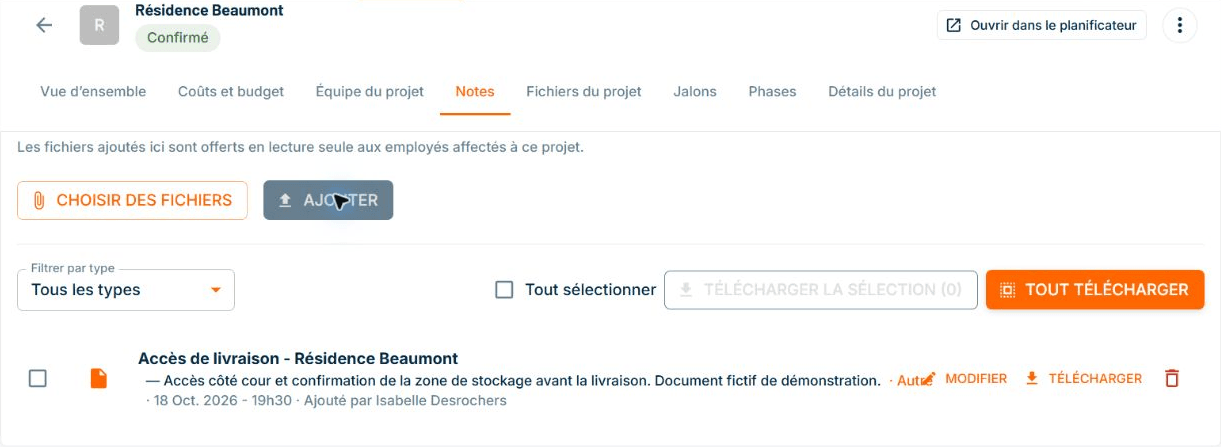
Site documents: access on your cellphone
ConstruMD
Nov 5, 2026
All Posts
SHARE THIS POST
Published : November 5, 2026
You need to plan a team, but the client has not yet confirmed the start of the site. Waiting for their response may leave you with little time to organize the work. Setting a date as if it were confirmed can also lead you to make commitments too early.
To prepare for upcoming projects, you need to distinguish between planned work and confirmed commitments, while seeing what each project would require from employees.
Preparation often begins before the client's final agreement. You know the work to be done and you plan a period to do it. The date is noted in the schedule, while the awaited response remains in an email or discussion.
If this period appears like other projects, it becomes difficult to know what is truly confirmed when reviewing a new request. The team seems busy, but part of its upcoming schedule still depends on a confirmation.
You may dismiss another request because employees seem already booked, while the pending project could be moved. Conversely, giving departure instructions too early requires recalling the team and adjusting the schedule if the date changes.
To find out what was agreed upon, you need to go back to messages or call the client before knowing what organization to prepare.
The ConstruMD resource planner allows you to prepare assignments in a project with the status To be confirmed. Workers and their periods are entered into the calendar, with a marker indicating that the project remains provisional.
You specify the project name, its client, and its status, then the planned employees and their work periods: start date, number of workdays, and hours planned per day. In the Projects view, this preparation can be viewed alongside confirmed projects.

Demonstration data. Beaumont Renovation carries the marker "To be confirmed". Alexandre Gagnon's period is already prepared in his calendar, even if the project is not yet confirmed.
You can thus prepare the team before definitively setting the date, keeping the project's status visible in your planning.
The Resources view groups projects under each worker. The To be confirmed option allows you to include forecasts in the displayed available hours, or to view confirmed commitments only.
In the demonstration, Alexandre Gagnon has a 40-hour schedule and a provisional assignment of 24 hours during the week of October 19. With forecasts included, the calendar shows 16 available hours. With confirmed commitments only, it shows 40. You can see the space this project would take in his week.
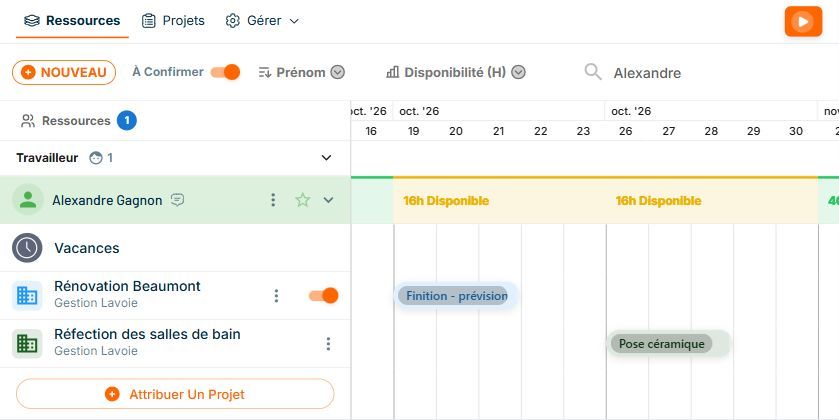
Demonstration data. With "To be confirmed" activated, the Finishing - forecast period is visible. The hours of this assignment are taken into account: Alexandre Gagnon shows 16 available hours for the week of October 19.
The filter retains the project's preparation: the periods reappear when forecasts are included again. Before proposing this employee elsewhere, you can identify the date to clarify with the client and examine the two possible organizations.
To examine periods that involve the same worker, our article on double project assignments completes this verification.
Once the date is agreed upon, check that access, preliminary work, and materials allow for departure preparation, and that the chosen employees are still suitable for the work. The team preparation remains linked to the project's needs and examined availabilities.
Once these elements are validated, the action Mark as confirmed changes the project status to Confirmed. The prepared assignment retains its worker, duration, and dates.
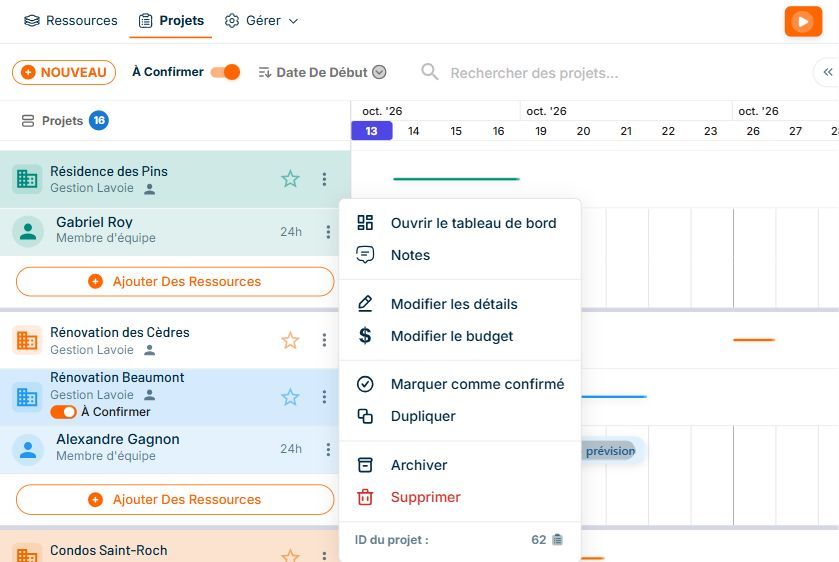
Demonstration data. "Mark as confirmed" changes the project status. The "To be confirmed" option in the top bar is used to include or hide forecasts.
The planned team and its periods are thus already in place at the time of confirmation. You can prepare instructions and integrate the confirmed dates into your weekly project schedule.
As responses arrive, update forecasts and agree on dates with the concerned parties. You can review subsequent requests with already confirmed projects and those still pending, rather than relying on a date whose status is unclear.
You know which project to clarify before making another commitment for the same employees.
Try our planner for free for seven days, no credit card required, and prepare the assignments for your next project whose date remains to be confirmed.
You might like
ConstruMD
Nov 5, 2026
ConstruMD
Nov 5, 2026

ConstruMD
Nov 5, 2026