Site documents: access on your cellphone
ConstruMD
Nov 5, 2026
All Posts
SHARE THIS POST
Published : November 5, 2026
In Excel, a schedule change may require you to correct multiple places: the project tab, the employee summary, and the total hours. When this information is maintained manually, it's up to you to ensure they match.
The ConstruMD planner consolidates assignments into a single calendar. You can view the team scheduled for a project or the various projects of an employee, then see the new dates and available hours after a modification.
A tab per project can be handy for preparing your teams. The problem arises when you need to check where an employee is working for the rest of the week. If the information is spread across multiple sheets, you need to consult them one by one or prepare a summary of their schedule.
Excel allows you to calculate hours with formulas. But if you fill out this summary manually, a changed date in the project tab must also be corrected in the employee's schedule. Otherwise, the two tables will no longer match.
Before sending out the new instructions, you must then find the correct date and check what was already planned elsewhere. If the old schedule was sent to the team, you also need to inform the concerned individuals. The modification is made, but there is still work to ensure everyone has the correct information.
To avoid maintaining two tables manually, our planner presents the same assignments in two ways: by project and by employee. You can thus prepare a project's team, then check a person's complete schedule before changing their dates.
In the Projects view, employees are grouped under their project. Their work periods are placed on the calendar, with a colour per project. You can display multiple projects at the same time and see the planned team for each, without switching from one tab to another.
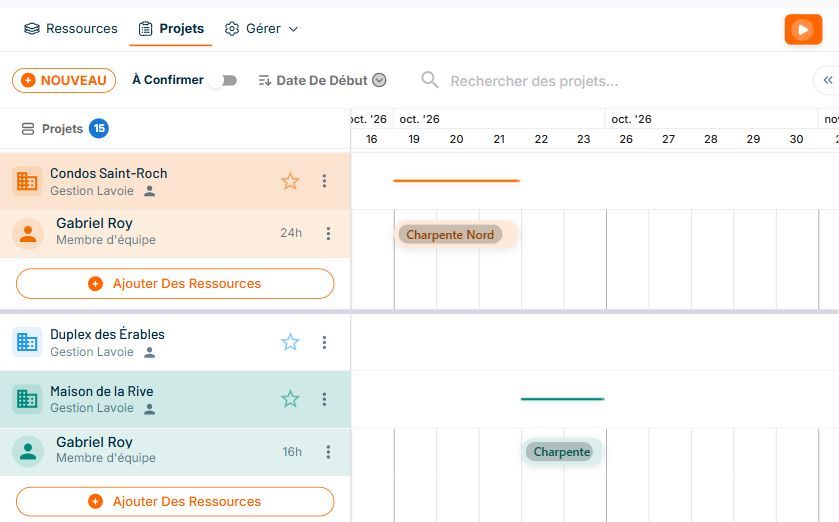
Demonstration data. The fictional worker Gabriel Roy is scheduled at Condos Saint-Roch from October 19 to 21, then at Maison de la Rive on October 22 and 23. Each project shows the days he is supposed to work there.
This view shows who is scheduled on each project. To know where the same person is working throughout the week, you switch to Resources. Their projects are then grouped under their name. You find the periods already entered in Projects, without recreating their schedule in another table.
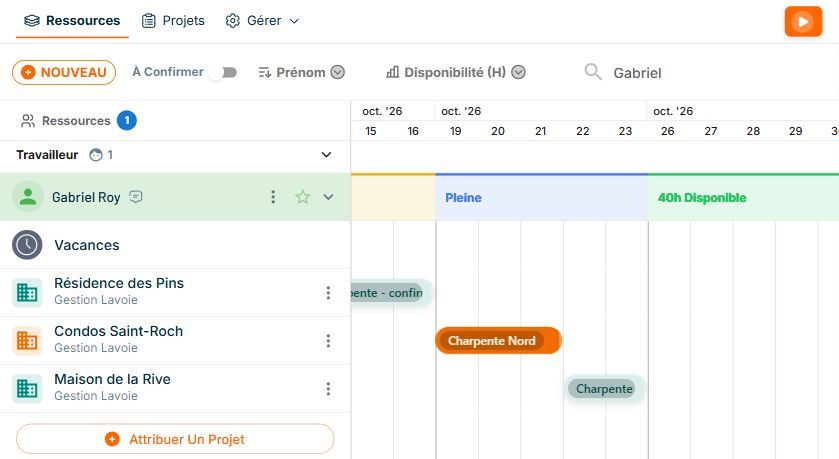
Demonstration data. The periods at Condos Saint-Roch and Maison de la Rive now appear under Gabriel Roy. They occupy the 40 hours of his week: the calendar indicates "Full".
You thus have the two necessary pieces of information to adjust the schedule: the planned team on the project and the days each employee is already working elsewhere. It is from this schedule that you can decide which dates to change. The verification of overlapping periods is explained in our article on double project assignments.
In the demonstration calendar, we then reduced the planned duration at Condos Saint-Roch from three to two days, keeping eight hours per day. The intervention thus ends on October 20 instead of the 21st. The one at Maison de la Rive remains scheduled for October 22 and 23.
To modify his period at Condos Saint-Roch, you adjust the number of days and check the planned hours per day before saving. The ConstruMD planner recalculates the total hours and displays the new dates in both views.

Demonstration data. After the modification, October 21 has no assignment. The week changes from "Full" to "8h Available".
The correction also changes the number of hours left to schedule. Gabriel Roy now has 16 hours planned at Condos Saint-Roch and 16 at Maison de la Rive, for a total of 32 hours. Since his usual schedule is 40 hours per week, the resource planner displays the remaining eight hours.
You can thus see that October 21 is free in his calendar. You can keep this day available or assign him work on another project, after ensuring he can perform the tasks and that the project is ready to receive him. The software shows you the remaining space in the schedule; it's up to you to decide how to use it.
The available hours are calculated based on the employee's usual schedule and the planned work on their projects. Therefore, this information must be up to date. Also check if the To be confirmed projects are included in the view. The displayed hours represent the planned work on the projects.
To see if this way of working suits you, take a week you have already prepared in Excel. Add your employees and projects in ConstruMD, then enter the dates, number of days, and planned work hours. Also indicate each employee's usual schedule so that the calculation of available hours matches their work week.
The manual bulk addition allows you to add multiple workers in a single form. You enter each person's information, then create their work periods on the projects.
Once the week is prepared, check the team for each project and each employee's schedule. Then change a work period to see how the dates and available hours update. You can compare these checks with those you currently perform in your Excel file. The ConstruMD planner presentation details its other functions.
Try our planner for free for seven days, without a credit card, to prepare your next week and adjust your project schedules in a single calendar.
You might like
ConstruMD
Nov 5, 2026
ConstruMD
Nov 5, 2026

ConstruMD
Nov 5, 2026